Add members
Add the members who will travel for work with Bolt for Business
1. Go to People
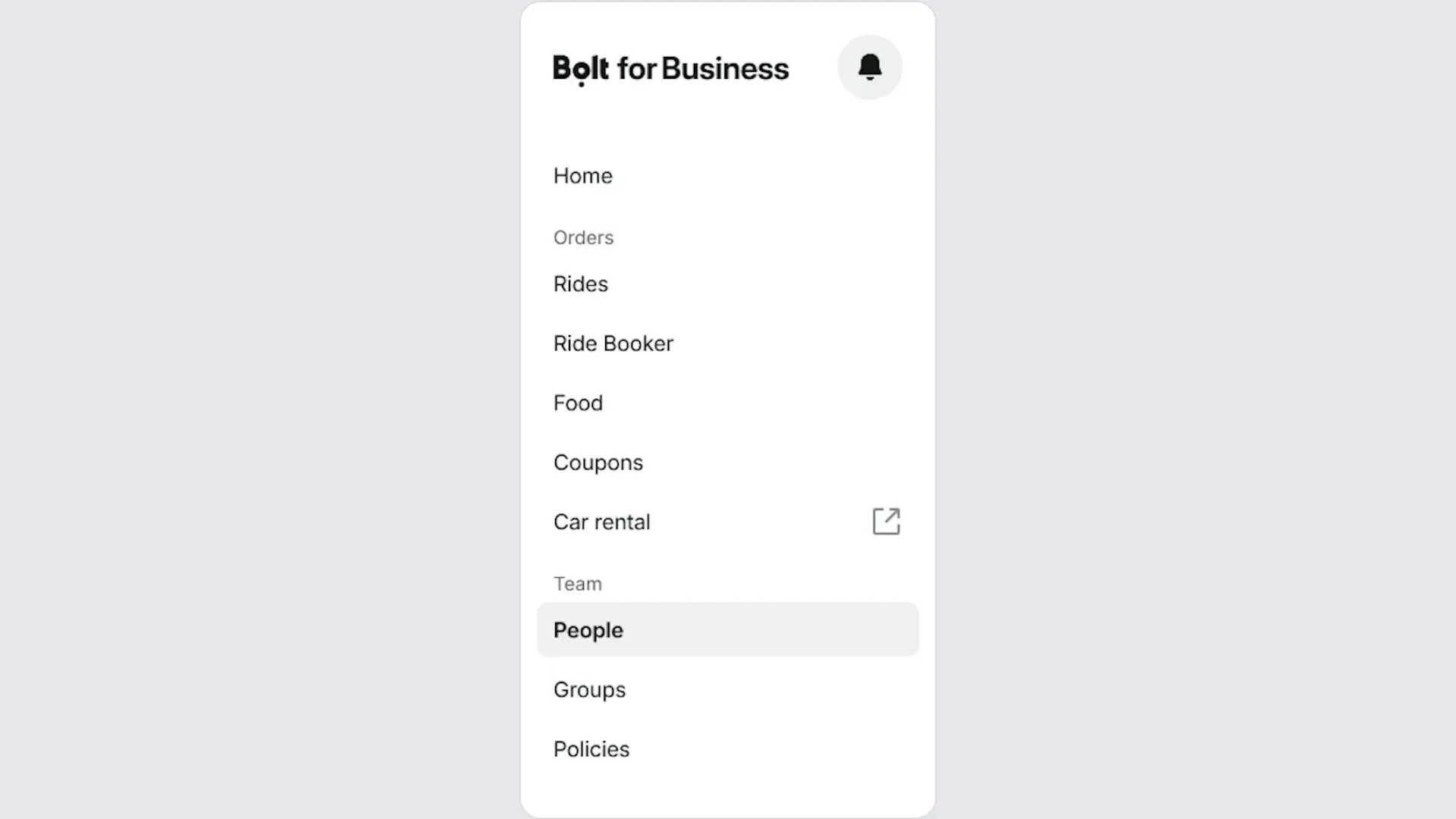
Sign in to the portal and select People from the menu on the left.
2. Select Add
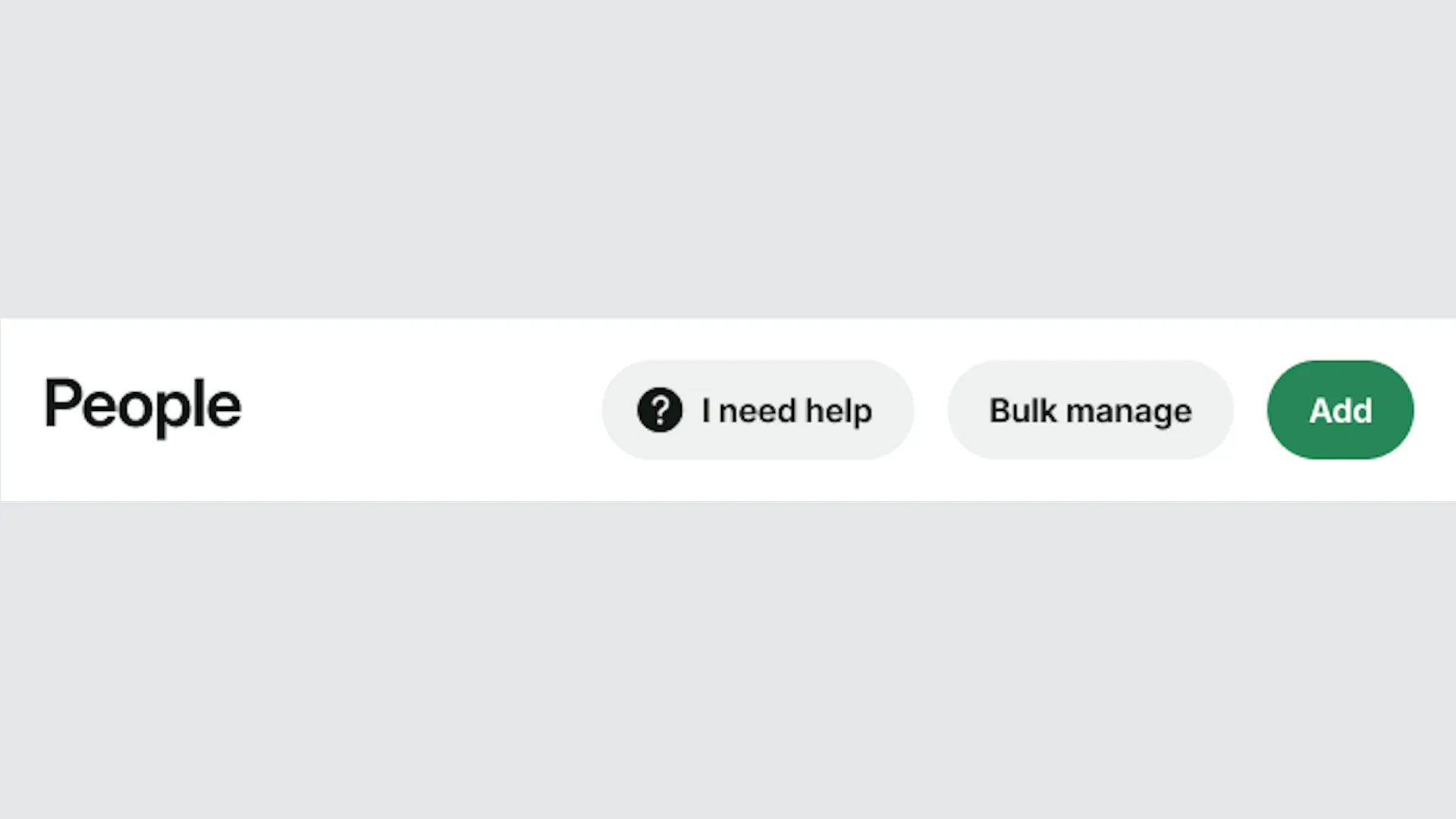
Select the Add button in the top-right corner.
3. Add people individually or in bulk
There are three ways to add employees to your account.
Import people: upload member details in bulk from a spreadsheet (see 3a).
Add a person: fill out an member's details (see 3b).
Invite people: enter an email address to send an invitation (see 3c).
3a. Import people
Download the template and include each member's first name, last name, phone number, and email address. Save the spreadsheet as a CSV or XLSX file and upload it to your account.
3b. Add a person
Fill in the member's first name, last name, email address, and phone number. You'll also need to assign them to a group.
3c. Invite people
Enter an email address. The member will get an email with a link to join the business account.
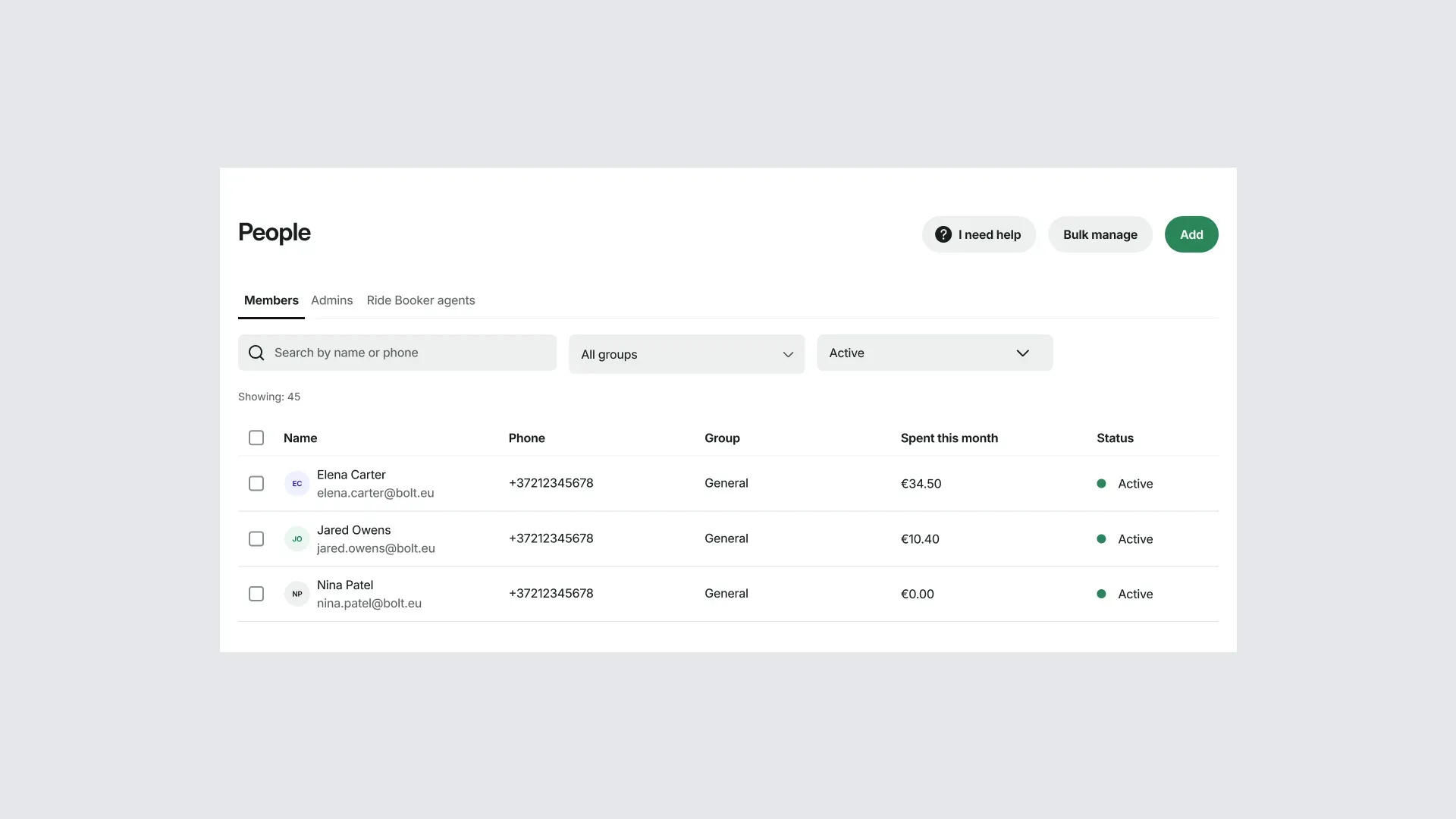
4. View and edit member details
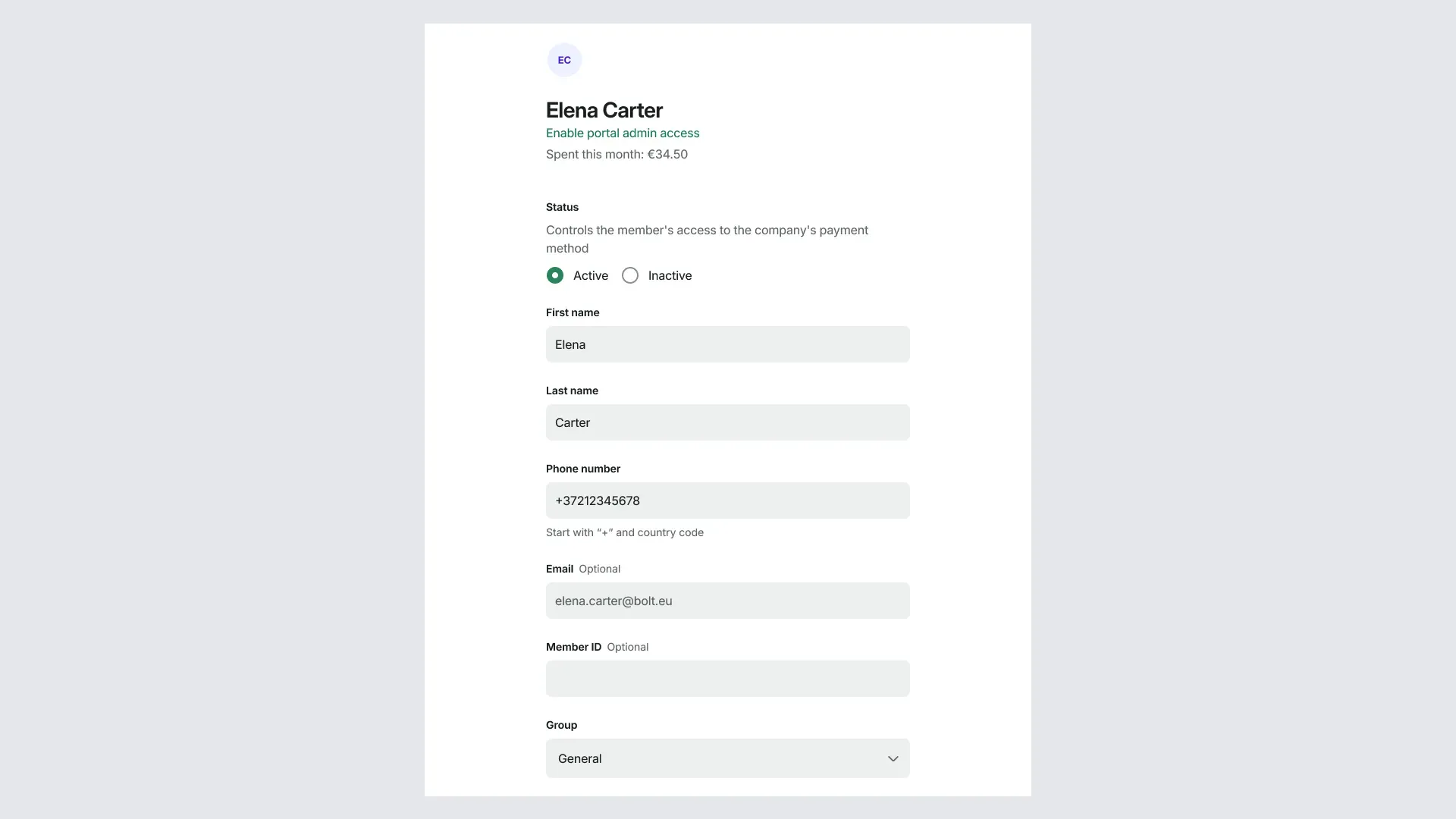
Select a member to update their details, deactivate or reactivate the member, and change their group.